

 Audience: Admins
As an Admin user, you can complete the personal profile for another user. To do this, you need to log in as another user, update their profile, and log out of their profile.
Overview
- Login as the user (using your Admin access)
- Update the User's Travel Profile
- Return to your own dashboard
Login as the user (using your Admin access)
You have two options to log as a user. You can quick login under your initials or log as under settings.
Quick log as another user
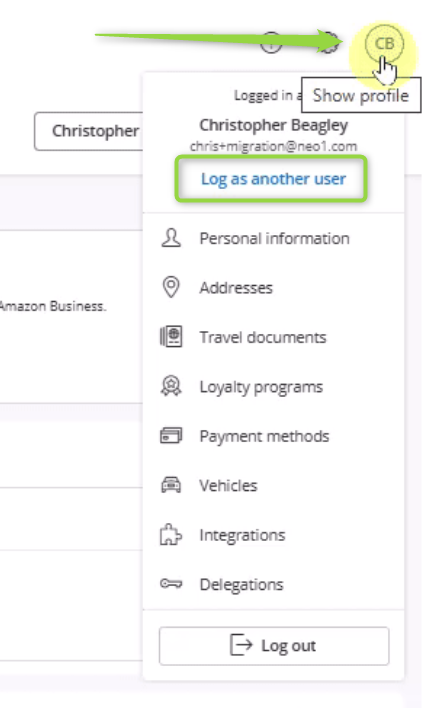
Hover over your initials in the top right-hand corner, and click 'Log as another user'
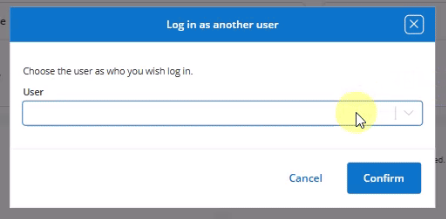
Choose the user you wish to log as
Login under Settings
Click settings, then select 'People management' in the General section, you will be landed on the Users tab by default
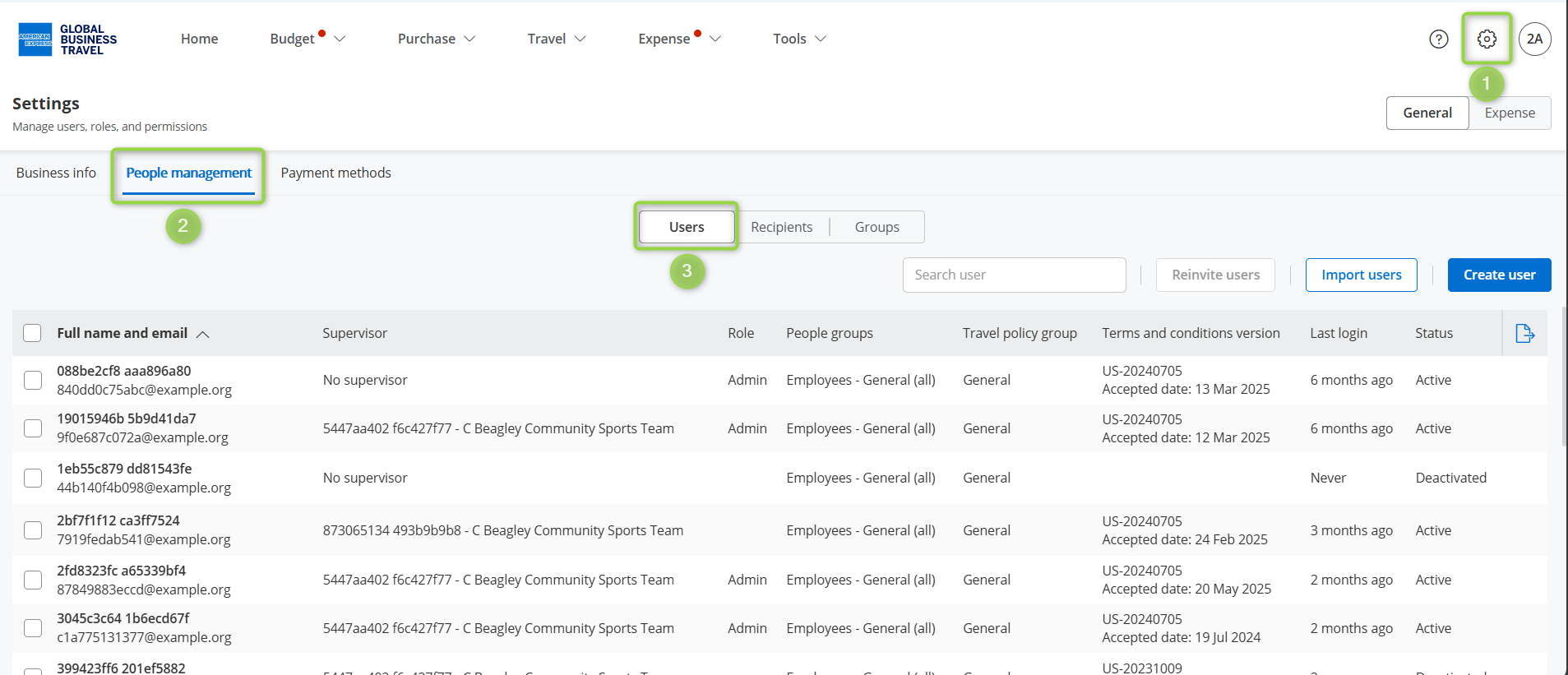
Hover your mouse over the line of the user and click on the key symbol to the far right to Log as
This will take you to the dashboard of the user you have selected

Update the User's Travel Profile
Add Date of Birth, Phone number, Address, Loyalty programs, Travel documents, Payment Methods and vehicles
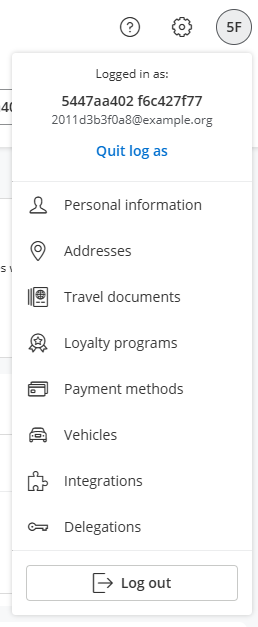
Hover over your initials in the top right-hand corner
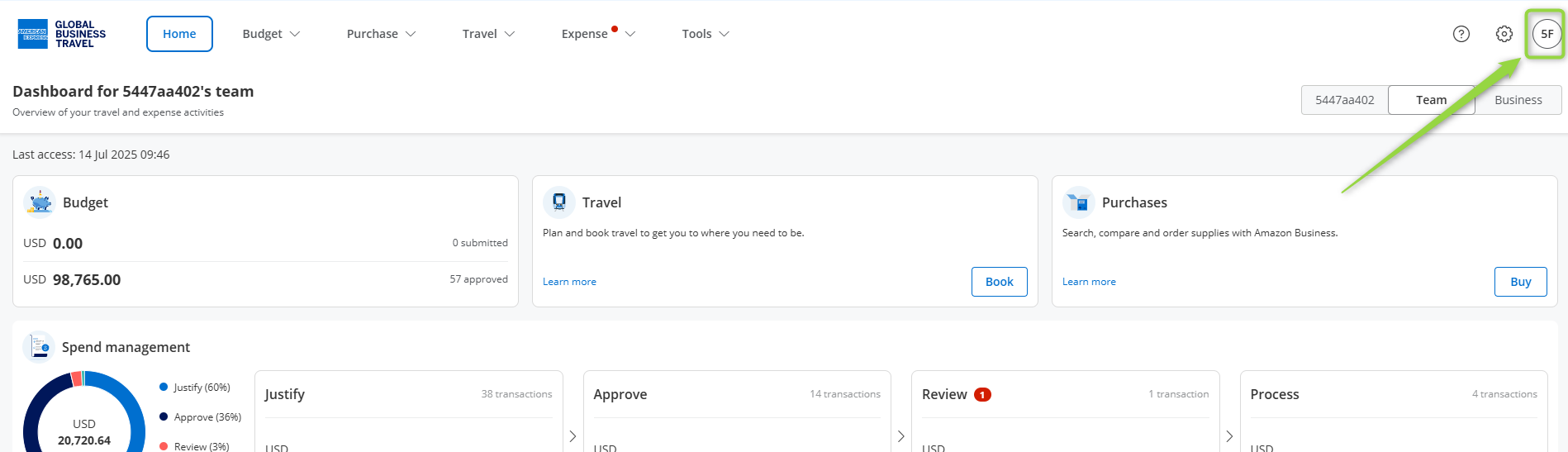
A menu will open. This is where you can choose which subject you want to update
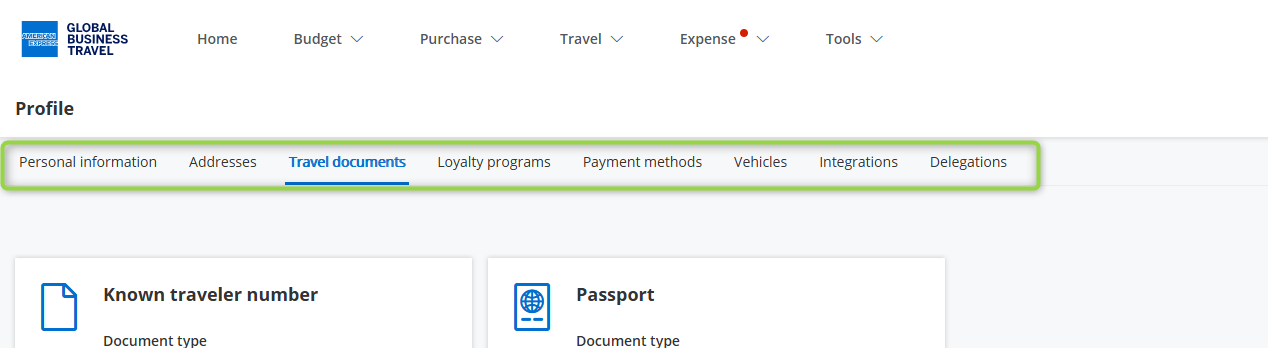
Once you click on the profile section you want to update, you will be able to navigate to the other tabs on the top of the page. Read this article about update user profile
Return to your own dashboard
Once you are done, log out of the user's profile and return to your own Admin profile.
Hover over your initials in the top right-hand corner, click 'Quit log as'. This will take you back to your own profile.
