

 Audience: Admins
When creating field codes for an established field, you are presented with the option to assign a 'code approver'. Code approver settings allows an assigned user to be granted visibility and control over spend (expense/budget) submissions that include that particular code.
When a code approver is assigned, any submissions with that code will trigger an approval request, routed to that code approver.
Overview
Creating a code approver
To create a code approver, you must first create a field following this guide
Within that set-up process, you will then be tasked with creating your field codes, and a code approver can be assigned at that time.
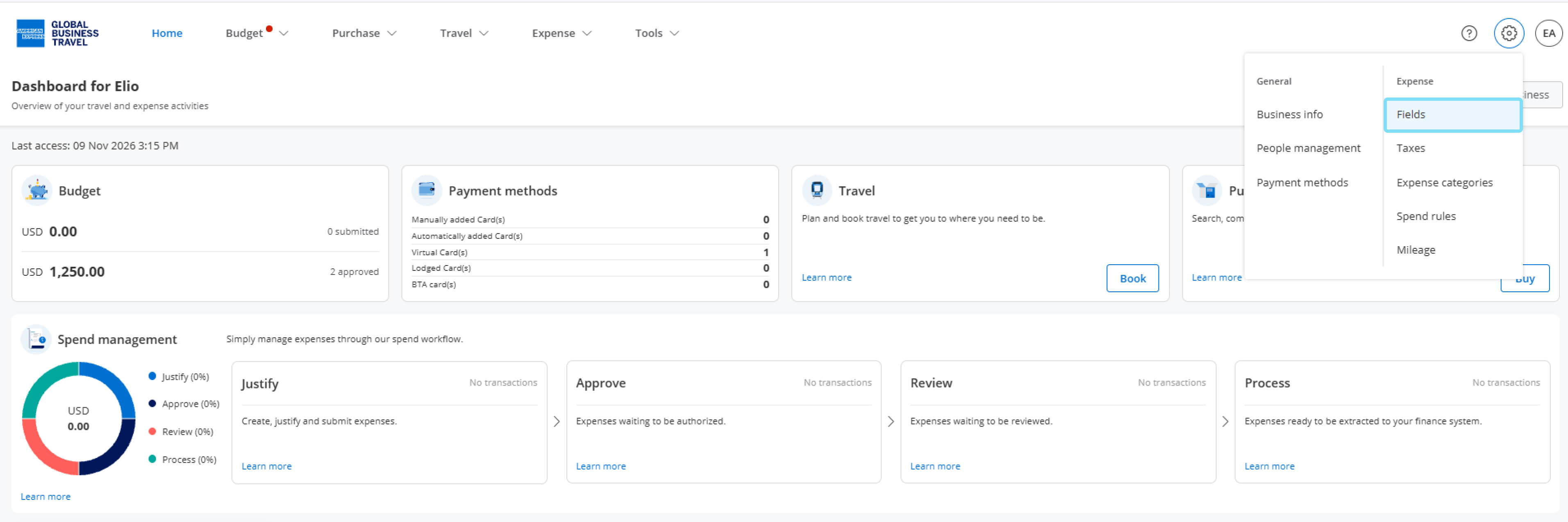
Click Settings, then select 'Fields' in the Expense section.
Click on the desired field
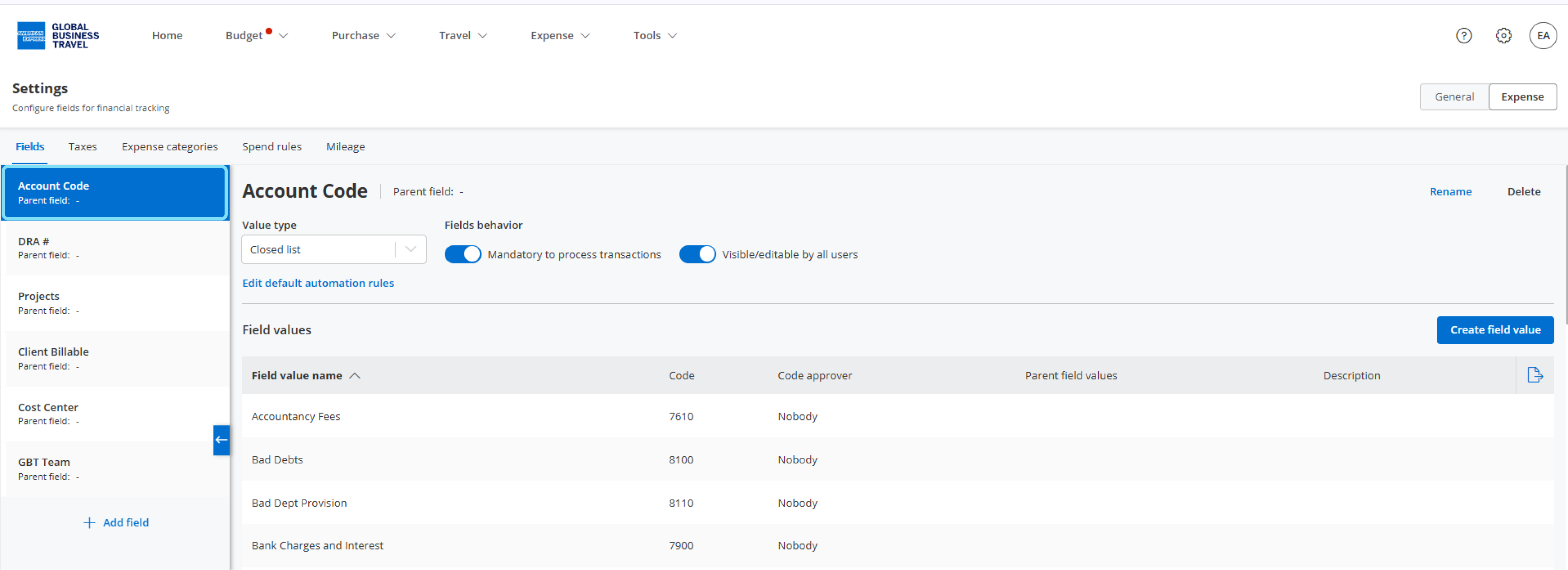
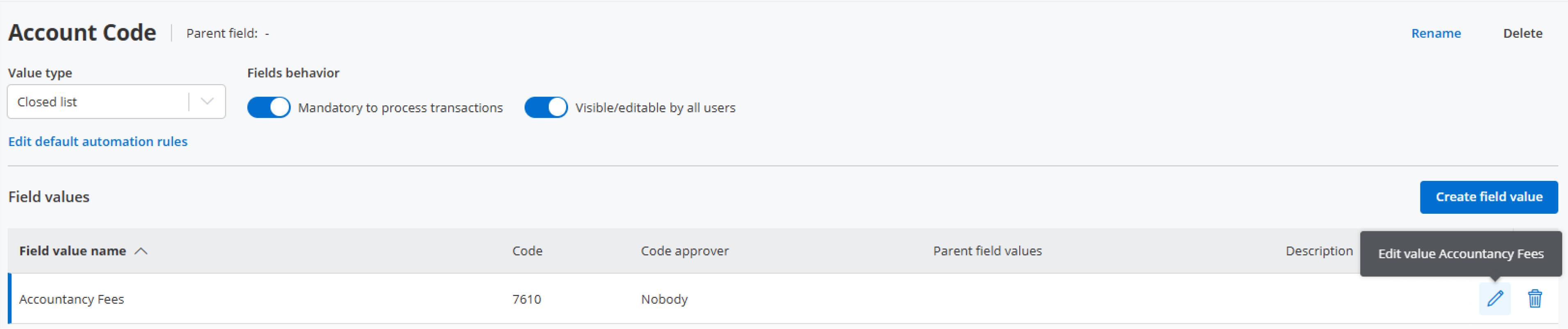
To add a new value or edit an existing one, click the pencil on the right
Click on the dropdown under Code Approver and select the user who will be the code approver for this specific code.
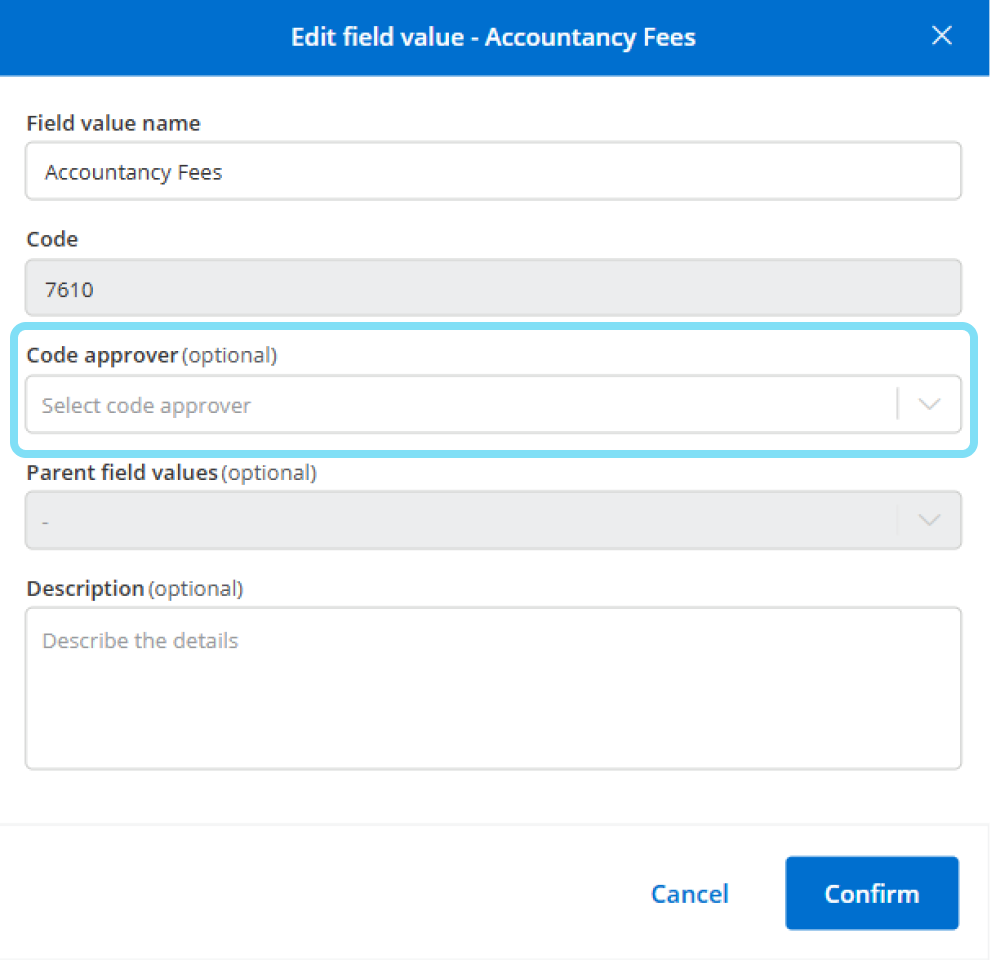
Click Confirm.
Note: When a code approver is assigned, any submissions with that code will trigger an approval request, routed to that code approverRepeat the above steps for other codes that require a code approver
Managing approvals as a code approver
When a spend item (budget/expense) has been submitted by a user, including a code with an established code approver, the code approver will be notified, via email, that they have a pending approval request.
Click Expense, then select 'Expense authorizations in the Manage section.
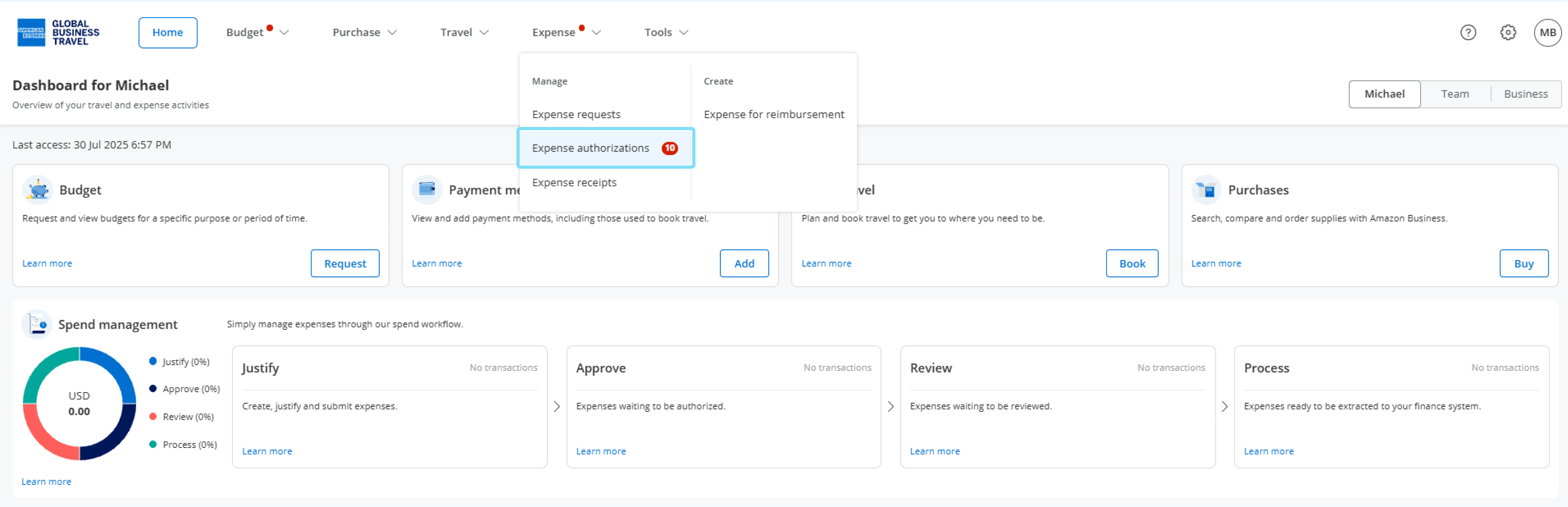
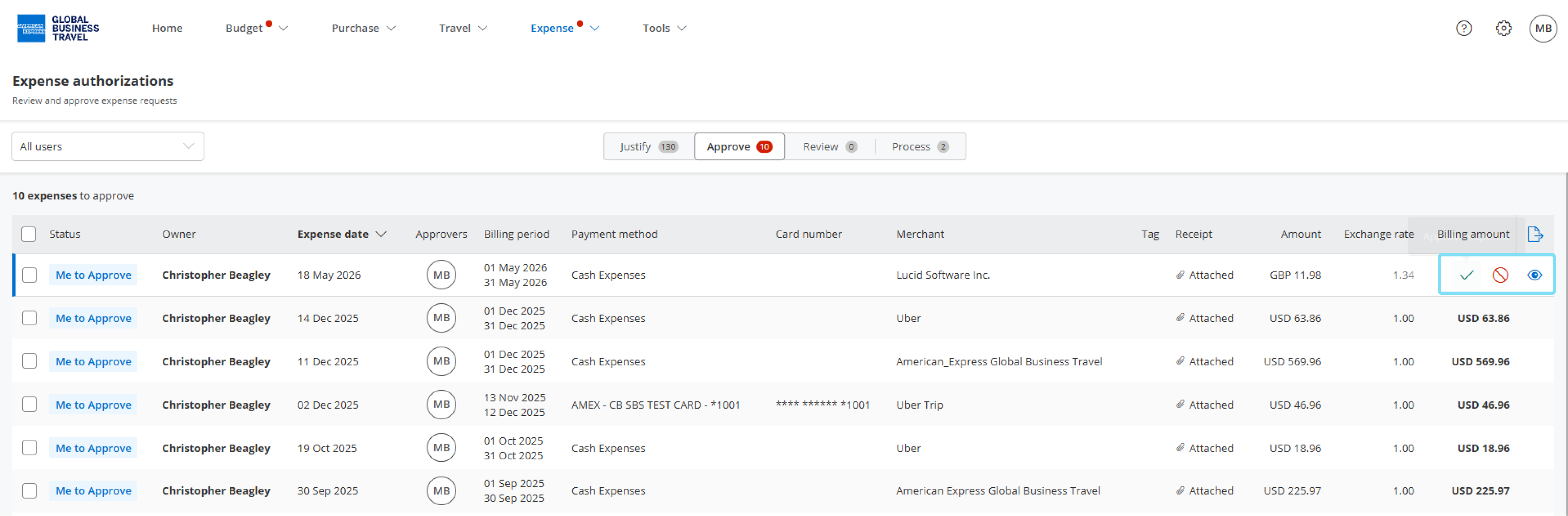
Click Expense, You will be presented with a list of your pending approval request
Hover your mouse over the Expense line and on the right hand-side of the line 3 options will appear:
- Approve (tick icon)
- Reject (reject icon)
- View Expense (eyeball icon)
 Next Steps: Now that we have covered Field Code Approvers, let's review Field Dependencies